
Set up an ongoing bank connection in Shift Online
Once your account is open, you’ll be asked to set up an ongoing bank connection to keep it active and your funds available.
Setting this up ensures access to your business transaction data for the ongoing maintenance of your account. Unlike your initial connection, it stays in place even if your account or security settings change. You can choose to connect or disconnect these accounts at any given time.
How you set this up depends on your bank. We’ll show you the right method for your bank when you log in to Shift Online.
Connect your Westpac account online
View instructions to connect your Westpac bank accounts online.
Read more
Before you begin:
You will need to complete the following steps on the Westpac website via PC, laptop or tablet. This feature is not available in the Westpac banking app.
Are you a Westpac Corporate customer?
If you are a Westpac Corporate customer, please reach out to your Westpac account manager to proceed with establishing a connection. You’ll need to:
- Request the following form from your Westpac business relationship manager: Authority to Disclose Bank Feed Data to Third-Party Service Provider
- Provide your Westpac account manager with your Practice ID and Client ID (located in Shift Online > Settings) along with the bank accounts you need to connect.
How to establish a connection
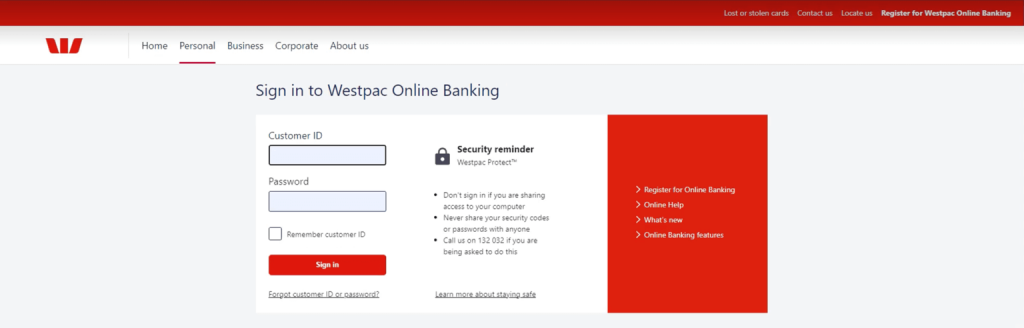
Sign in to Westpac Online Banking.
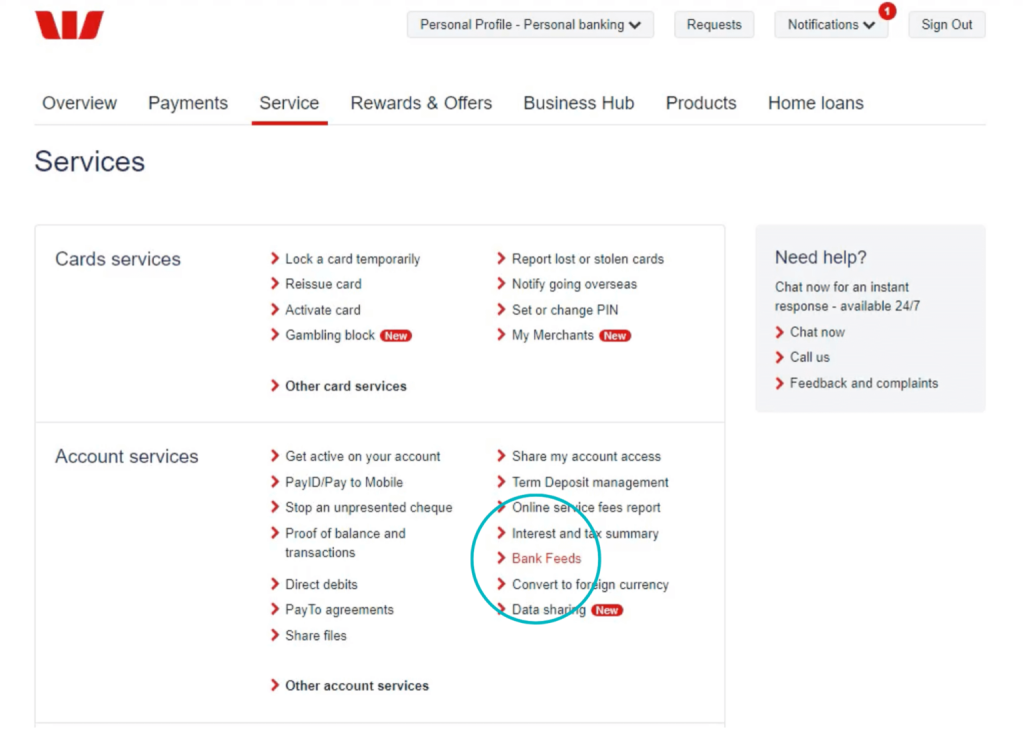
Select your profile from the drop down and navigate to Account Services by clicking Service > Services.

Go to Account Services > Bank Feeds.
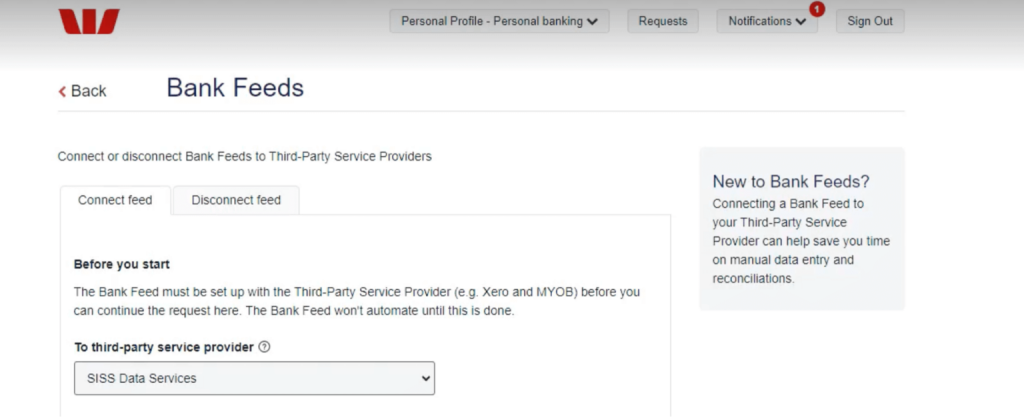
Select SISS Data Services from the drop down.
Enter the following Practice ID: SHIFT
Enter your email address.
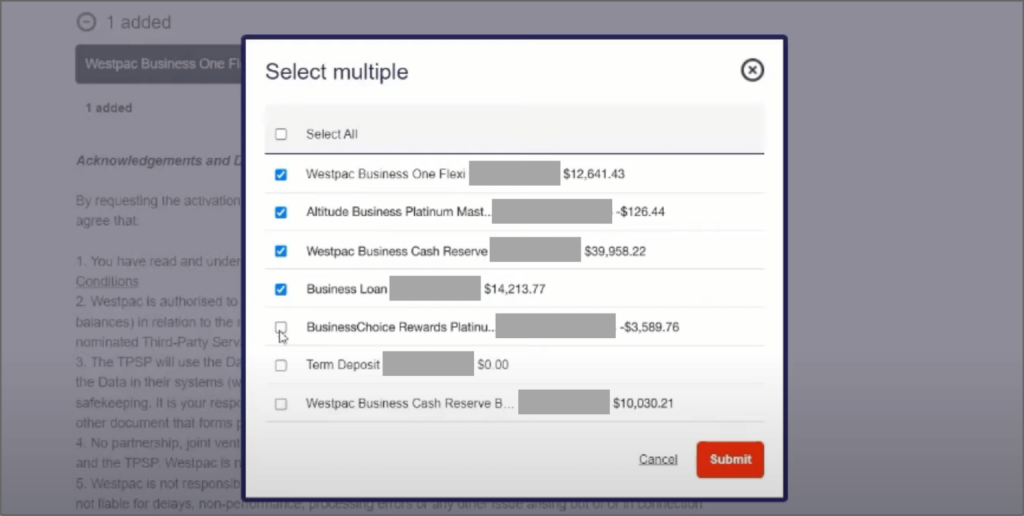
Click Select multiple to view a list of all your bank accounts.
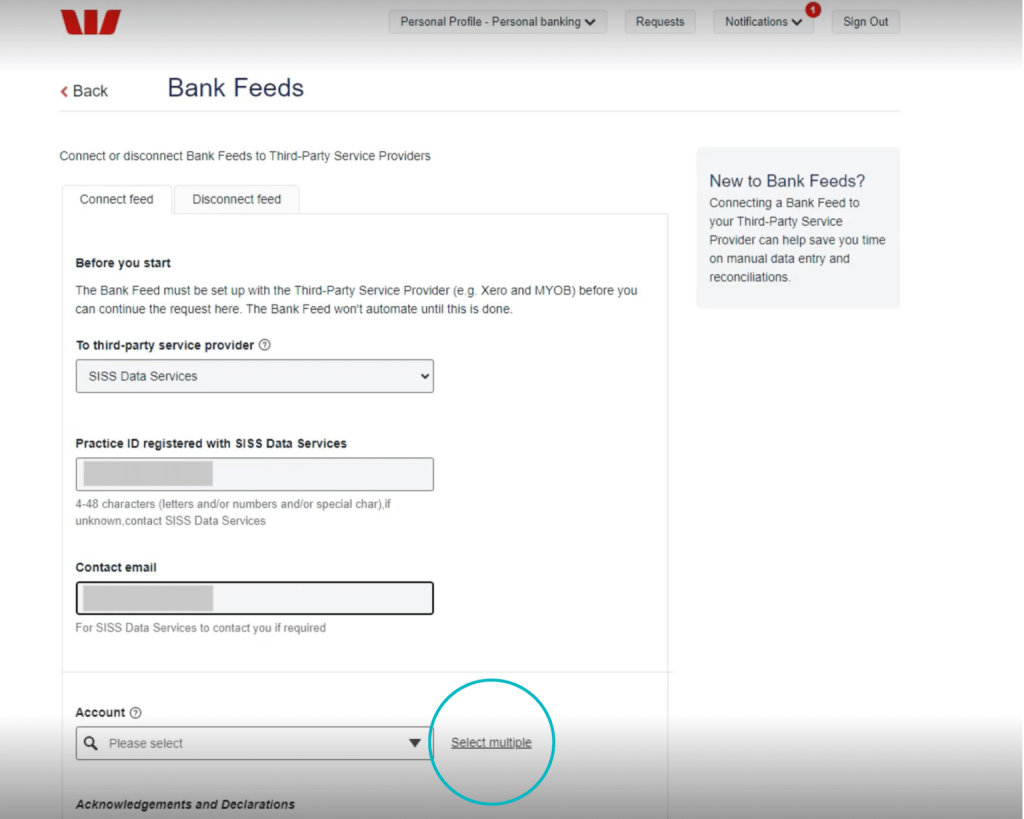
Select ALL required bank accounts listed in Shift Online, then click Submit. Please contact us if you have additional bank accounts you wish to connect.
Connect your ANZ account online
View instructions to connect your ANZ bank accounts online.
Read more
Before you begin:
If you are using ANZ Business Internet Banking and do not see the Activate bank feeds link, you may not be set up on a business profile. Please call ANZ Internet Banking on 13 33 50, available 24/7.
Are you an ANZ Transactive customer?
If you are an ANZ Transactive customer, please reach out to your ANZ business relationship manager to proceed with establishing a connection. You’ll need to:
- Request the following form from your ANZ account manager: Bank Feed Request Form
- Provide your Westpac account manager with your Practice ID along with the bank accounts you need to connect.
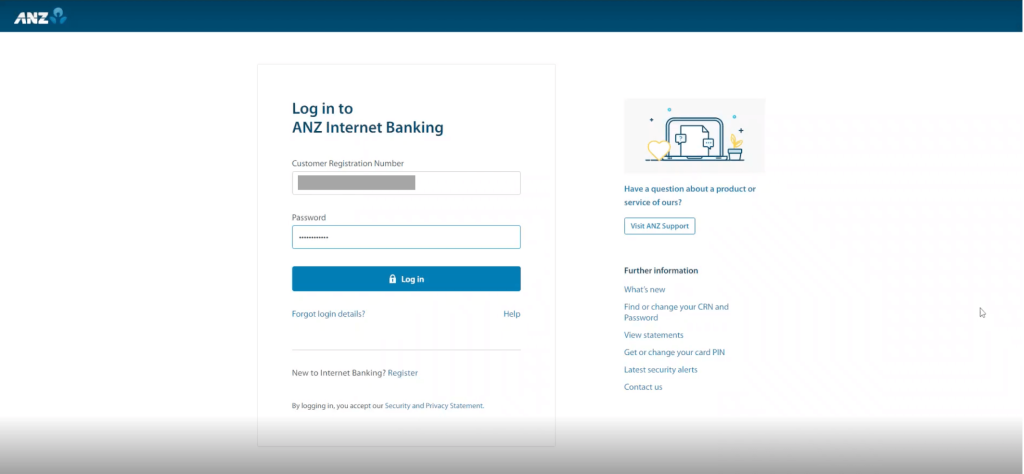
Sign in to ANZ Internet Banking.
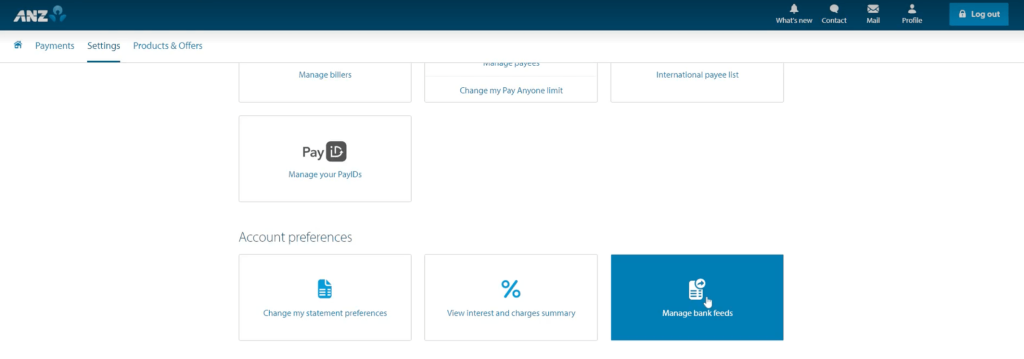
Go to your Settings.

Scroll down to Account preferences and select Manage bank feeds.
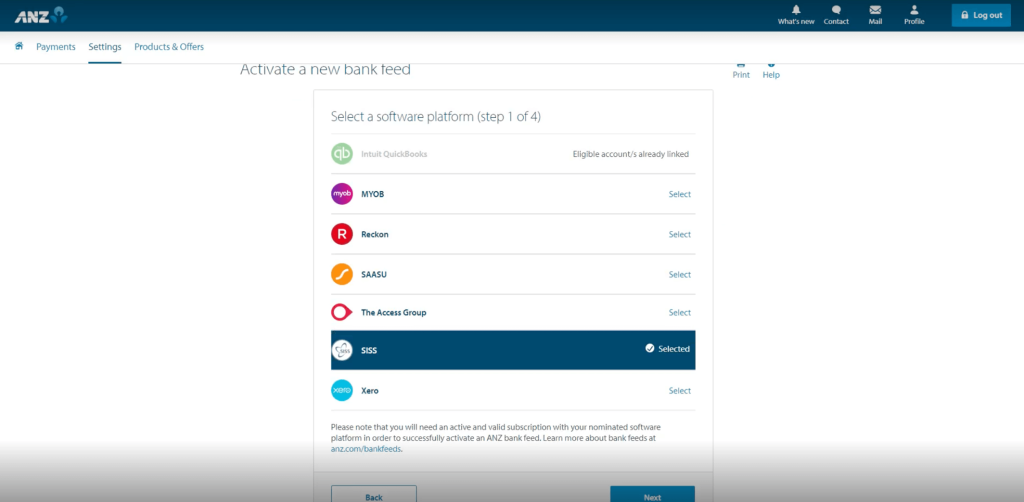
Click Activate a new bank feed.

Select SISS from the options available, then click Next.
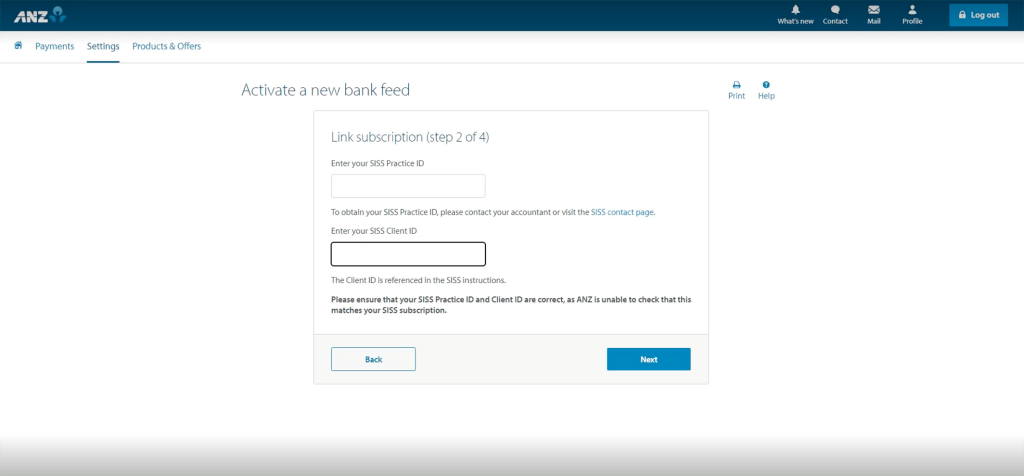
Enter the following Practice ID: SHIFT
Enter the Client ID , then click Next.
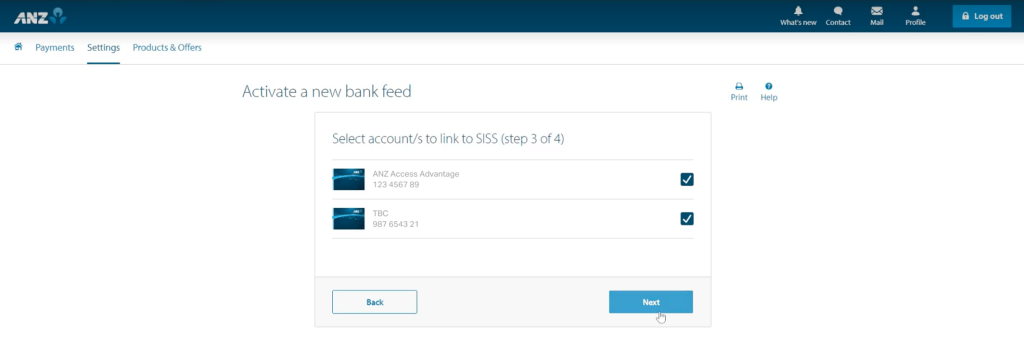
Select ALL required bank accounts listed in Shift Online, then click Next. Please contact us if you have additional bank accounts you wish to connect.
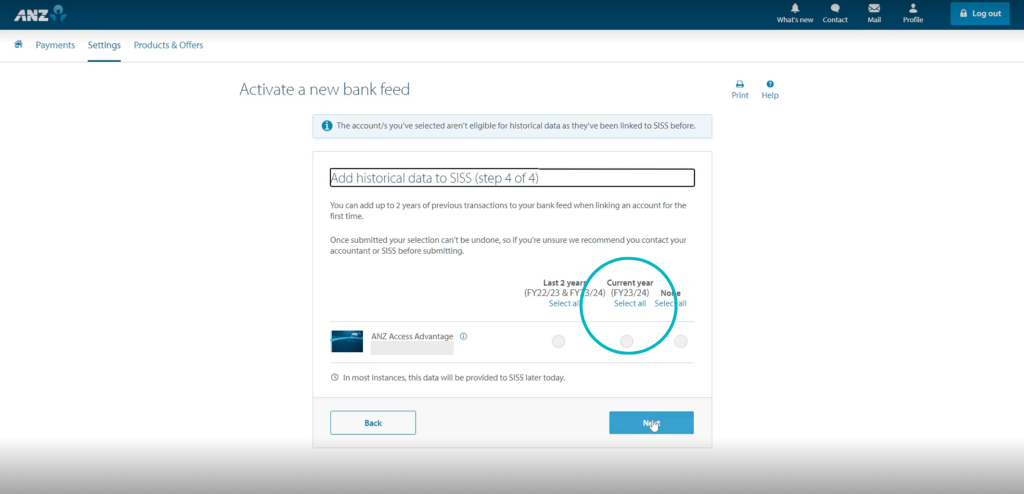
Select Current Year, then click Next.
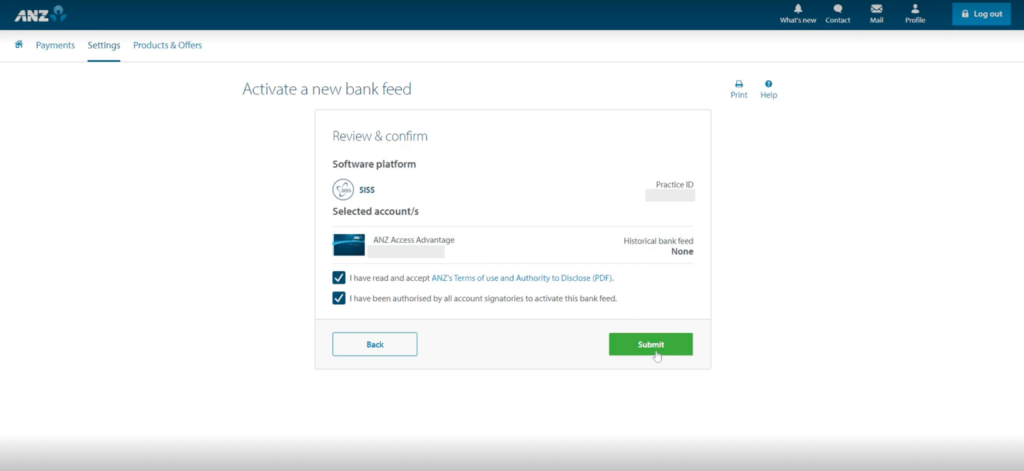
Review the Terms of Use and Authority to Disclose, then click Submit to agree.
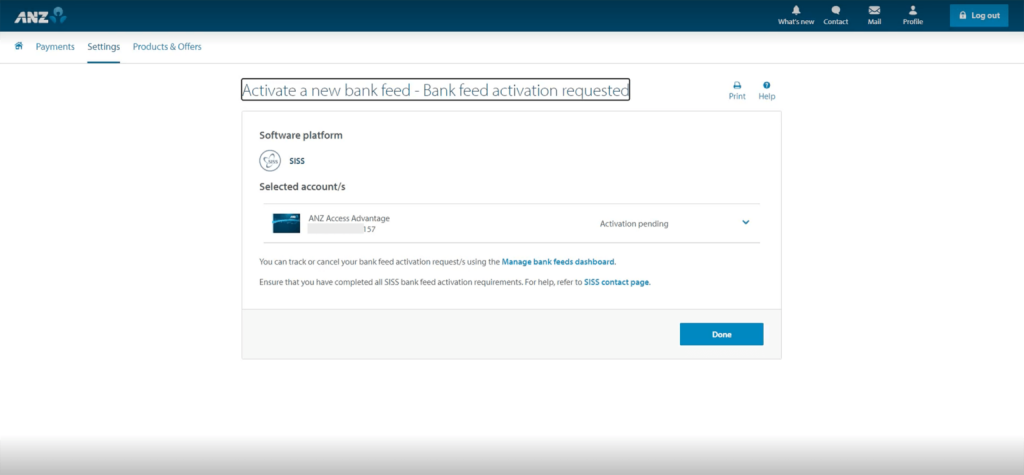
Click Done to complete the process. We’ll notify you once the feed has successfully been set up.
Need assistance?
Our friendly team is here to assist you. Please contact us on 1300 249 649 from Monday to Friday (8:00am – 7:00pm AET) and Saturday (9:00am – 2:00pm AET) or email contact@shift.com.au.